Scoreboard
Setting up the scoreboard is one of the most important pieces of the broadcast. No one wants to watch a live stream where they don't know the score or how much time is left. There are 6-7 components involved in generating the scoreboard.
Those include:
- Scoreboard controller (Fairplay MP-70)
- Raspberry Pi 3 A with Sense HAT running USB over IP
- Serial to USB adapter (With a Null Modem cable)
- Scoreboard Server running ScoreBridge and USB over IP client
- Nginx for hosting the data file over HTTP(s)
- Titler Live for fancy scoreboards (Optional)
- vMix
We'll go through everything step-by-step. Start by connecting the Scoreboard controller to the Raspberry Pi using the Serial to USB cable. One end looks like an old VGA cable, and the other is regular old USB that plugs into the Pi. You can plug the cable into the port labeled RS-232 on the controller. Here's a manual for the scoreboard controller if you ever need it.

Adapter Cable

This then connects to a 'null modem cable' which is just a male-to-male DB9 serial cable. This cable is what actually plugs into the RS-232 port on the scoreboard controller.
- Plug the DB9 connector into the RS-232 port on the back of the scoreboard, and plug the USB end into the Pi's USB port.
Raspberry Pi
All you should have to do is to plug in the Raspberry Pi into power using the micro USB cable. The LED HAT on the Pi should light up with a rainbow telling you that the Pi now has power. After ~10 seconds the LED Hat should turn 1 of 3 colors. You can press the button on the Sense HAT for debug information, this will tell you if anything has gone wrong or if everything is ok. Below is more information than the debug text on the Pi provides on what the colors mean.
For the most part, as long as you plug the Pi into power, and connect the serial cable to the back of the scoreboard and USB to the Pi; You should be done with the physical setup!
- Red: Things are Bad, either the USB cable is not plugged into the Pi, or the USB over IP service we use called VirtualHere, is not running on the Pi.
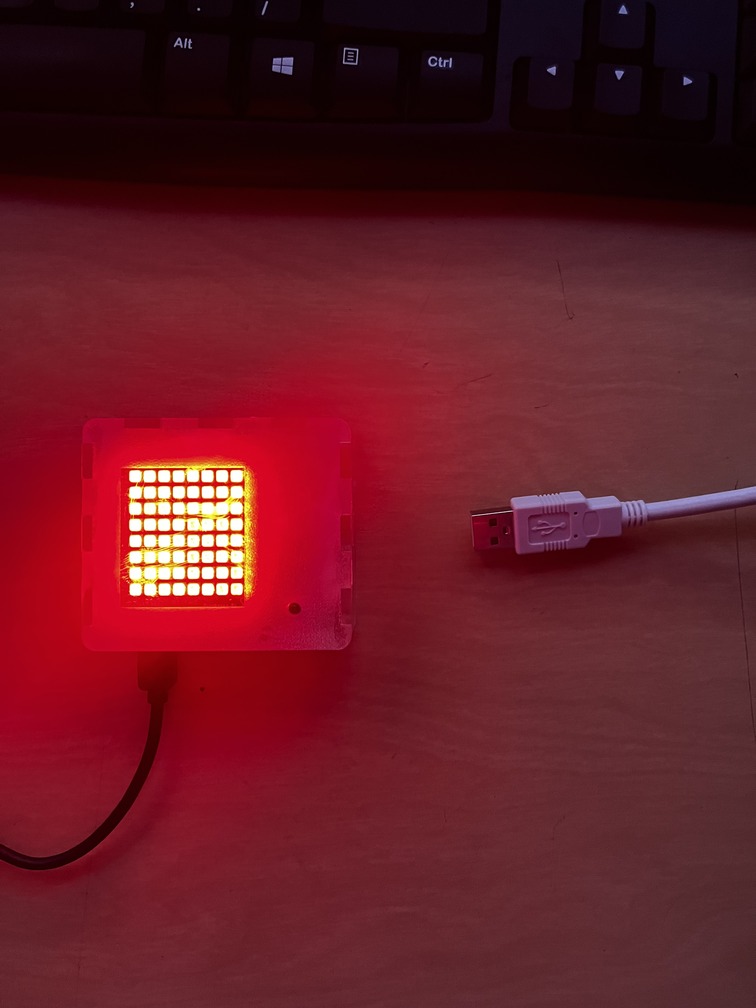
Debug text:
No USB: Make sure that the USB cable is properly inserted into the port, once you plug in the USB cable, the HAT should turn green letting you know you're good to go!VH Service Down: If the Virtual Here server is not running, that means the Scoreboard server will not be able to recieve the Scoreboard data. Press and hold the button on the Sense HAT for >5 seconds to display the IP address of the Pi, SSH into it using the regular Halo credentials, and run the commands below
sudo systemctl status virtualhere.service
You can look into the logs of the service here, and try to fix the issues yourself. Here's the documentation from VirtualHere Once you think everything is fixed you can run the command below to restart the service to see if it comes up again.
sudo systemctl restart virtualhere.service
- Yellow: Things aren't great, the Pi can not reach the Scoreboard Server.
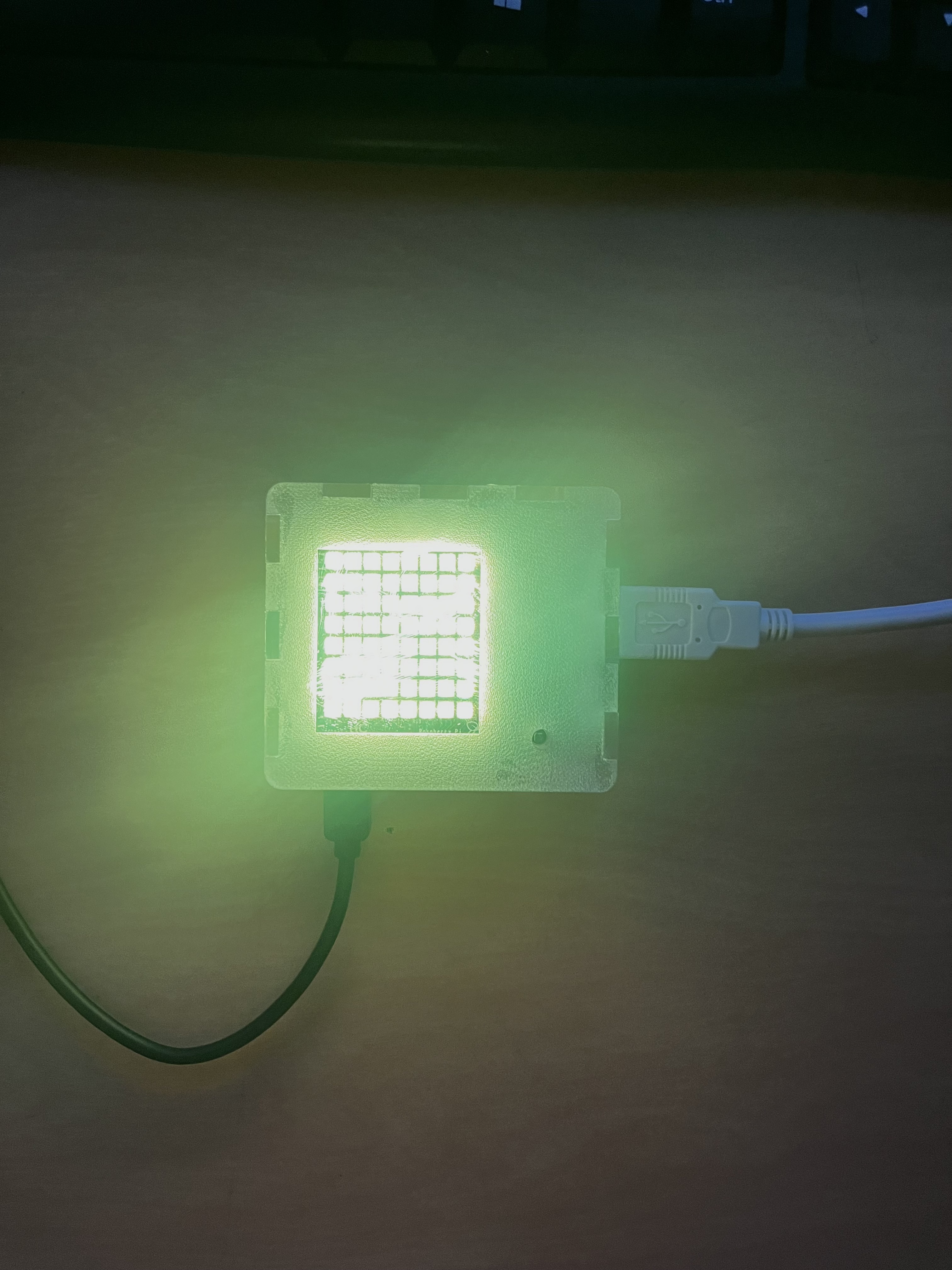
Debug Text:
No Server Connection
- This most likely means that the static IP address of the Scoreboard Server
172.16.10.5is unreachable, meaning the Mac Mini could be powered off, or it's LAN connection is unavailable.- if the power light on the front of the Mac is on, try Un-Plugging and Re-Plugging the ethernet cable on the back of the Mac.
- If the power light is off or cycling the ethernet cable did not bring it back online. Unplug the power cable on the back of the Mac and waiting 5 seconds. Plug it back in and press the power button on the back right corner of the Mac to turn it back on.
- This could also mean that the Pi can't connect to the Wi-Fi. The Pi is configured to automatically join STA's captive portal-less hdden Wi-Fi network called
18marconi90. Press and hold the button on the Sense HAT for less than 5 seconds to show the IP address of the Pi. If a valid IP address shows up on the display, head to a computer connected to STA's network and try and ping the IP address of the Pi. If you get a response everything should be working; try un-plugging the Pi for a few seconds, and reconnecting it.- If no valid IP address appears on the Pi after holding the button for >5 seconds, you're going to need to break out a monitor and keyboard and reconfigure the Pi's wireless connection.
- Green: Everything is Great!
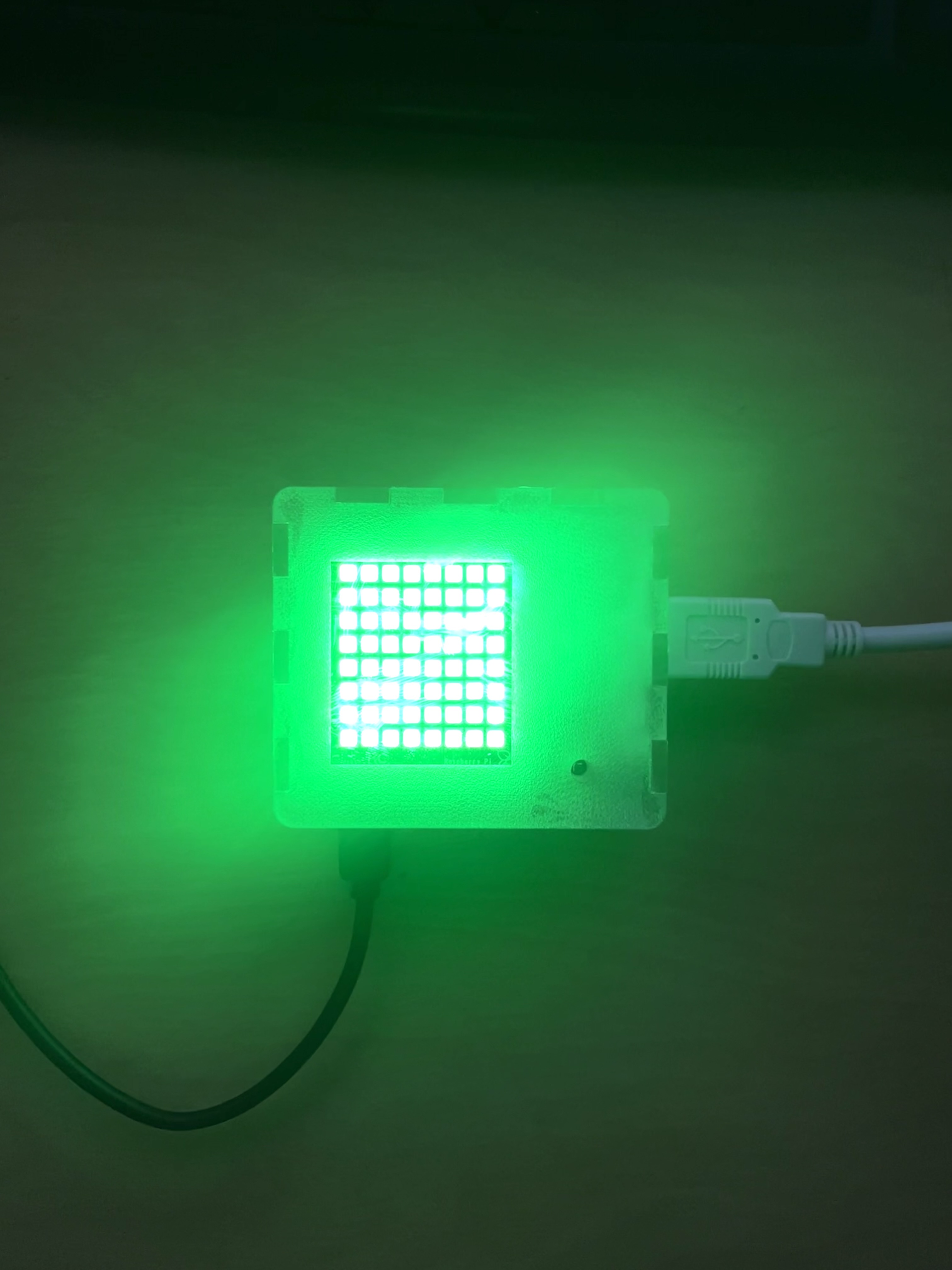
Debug Text:
OK: There doesn't seem to be any issues with the Pi itself, so look at the Scoreboard sever for troubleshooting.
Selecting the Sport
Once the Pi has been connected to power and the Scoreboard controller, ensure the HAT is Green and go to:
setup.stahalo.net
Once you're there, you might need to wait a few seconds for the Pi to finish booting, and for the web UI to sayPi Connected. Once the Pi is connected, you can go ahead hit the dropdown, select the sport that you're streaming and press the OK button. After ~5 seconds you should get the message Connected and sport selected and see a preview of the data the Pi is receiving! You now have the score for the livestream!
You can stop here unless you're having problems.
ScoreBridge
Once the Pi has been connected to power and the Scoreboard controller, ensure the HAT is Green
and head over to the streaming computer to configure Scorebridge. Open up an application called Remote Desktop Connection, and
enter internal.scoreserver.stahalo.net as the computer address. Login using the regular Halo credentials, you should now be logged in to the Scoreboard Server. Open up the Virtual Here application from the service tray, as it should already be running. As long as it's been a few minutes since you powered up the Pi, it should show up in the devices list, and one device should be in use. That's our Serial to USB adapter connected to the Scoreboard. Just make sure that's all in order and you can minimize the VH application.
Next either open or restart the Scorebridge Application. Select the Default profile and press the Settings button towards the bottom. On the left hand box, in serial settings, hit the dropdown for COM port and select the only one that shows up. Below that you can select the sport you're broadcasting, and the scoreboard model shouldn't have to change. You can save and exit, and Press the Connect button. You can press the preview data button to ensure you're getting the scoreboard data.
Scoreboard Grahpics
doing this later, get data from score.stahalo.net
Nginx
hosts the JSON/XML file via HTTPS for score.stahalo.net. Writing this later.